⚡ Controls & Input
⏱️ 6 min read
📅 Updated 2026-11-04
Web Gamepad API Guide: Connect Xbox, PS5 & Switch Controllers to Browser Games
The browser Web Gamepad API provides plug-and-play controller support. Learn how to connect your favorite gamepad and configure analog deadzones for precision gameplay.
Technical Overview
Playing a classic Nintendo 64 or PlayStation port with a keyboard can be awkward. Fortunately, the W3C Web Gamepad API allows web games to poll USB and Bluetooth controllers at 60 to 120Hz.
Most decompilations automatically recognize standard XInput (Xbox) and DirectInput (PlayStation) layouts, providing zero-configuration controls.
Check the "Controls Guide" on our game detail pages for exact default mappings and controller readiness status.
Step-by-Step Implementation
Step 1: Pair Controller via Bluetooth or USB
Connect your Xbox Wireless, DualSense PS5, DualShock 4, or Nintendo Switch Pro controller to your computer before opening the game tab.
Step 2: Wake the Controller in the Browser
Browsers require a physical button press before granting pages access to controller inputs. Press any button on your controller once the tab is active.
Step 3: Configure In-Game Keybinds
Navigate to the game’s options or input configuration menu to adjust deadzones, button mapping, or invert camera axis.
Frequently Asked Questions
Why isn’t my controller detected by the web game?
Browsers suppress Gamepad events until you physically press a button inside the active browser window. Click inside the game and press any face button.
Does the browser support rumble / haptic feedback?
Yes! Chromium browsers support the Gamepad Haptic Actuator API, allowing web ports to trigger vibration effects on compatible controllers.
Play Related Browser Ports
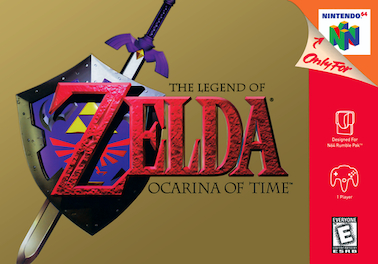
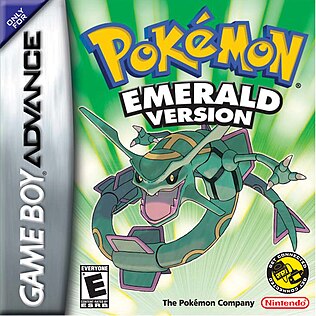
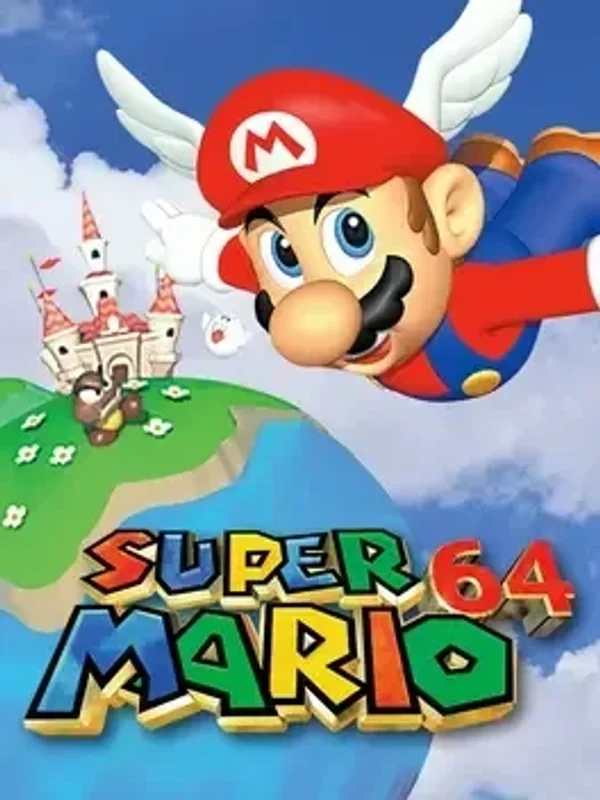
Test the techniques from this guide in these verified 1-click playable titles: